Often when we browse the internet we find websites or links that we like to revisit again or save. Oftentimes these websites require us to log in. And remembering passwords is no easy job. Hurray, no need to keep your pen and paper!
Here are simple steps on how to make your life easy when saving links and passwords.
- Open Google Chrome from Start Menu and Log In.
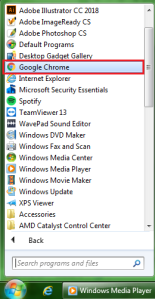
- Once you logged in, it will look like this.
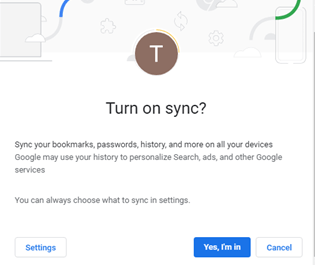
- Click, “Yes, I’m in”. This will save or sync whatever you do in Google Chrome the next time you log in.
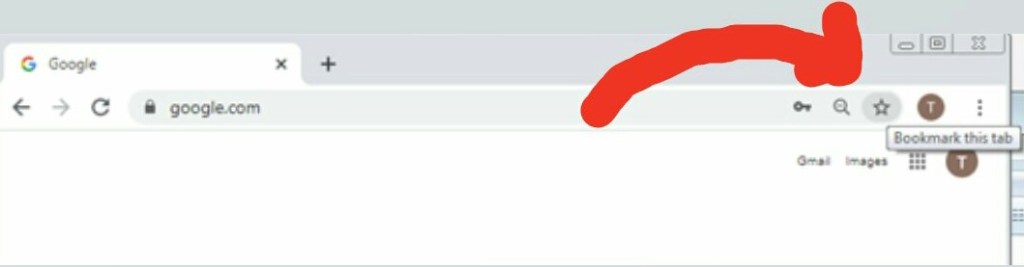
- Next, open a website. For this tutorial, we will open http://www.google.com or if you already have the website open, click the star icon.
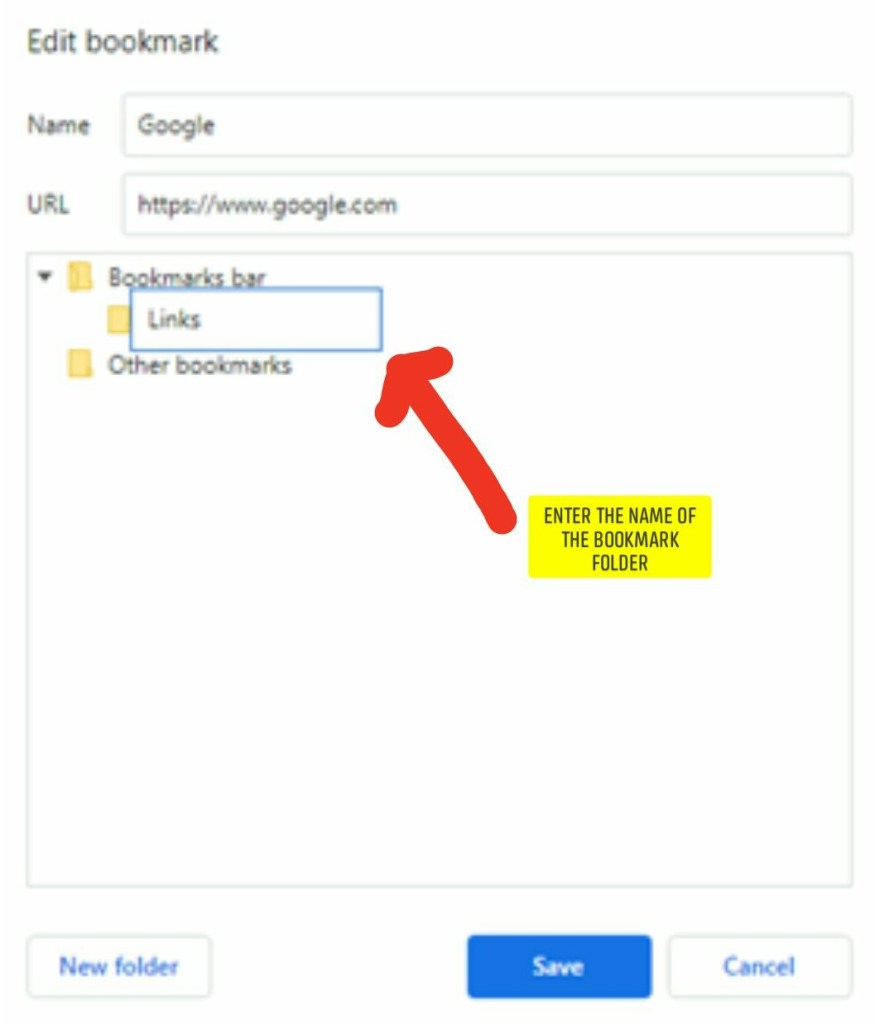
- You will be given an option to change the name of the website or link. You can rename it into something that is easier to remember. You can also create your own bookmark folder. If you want to rename and save it to another folder other than the Bookmarks bar, change the “Name” first then click “New folder”.
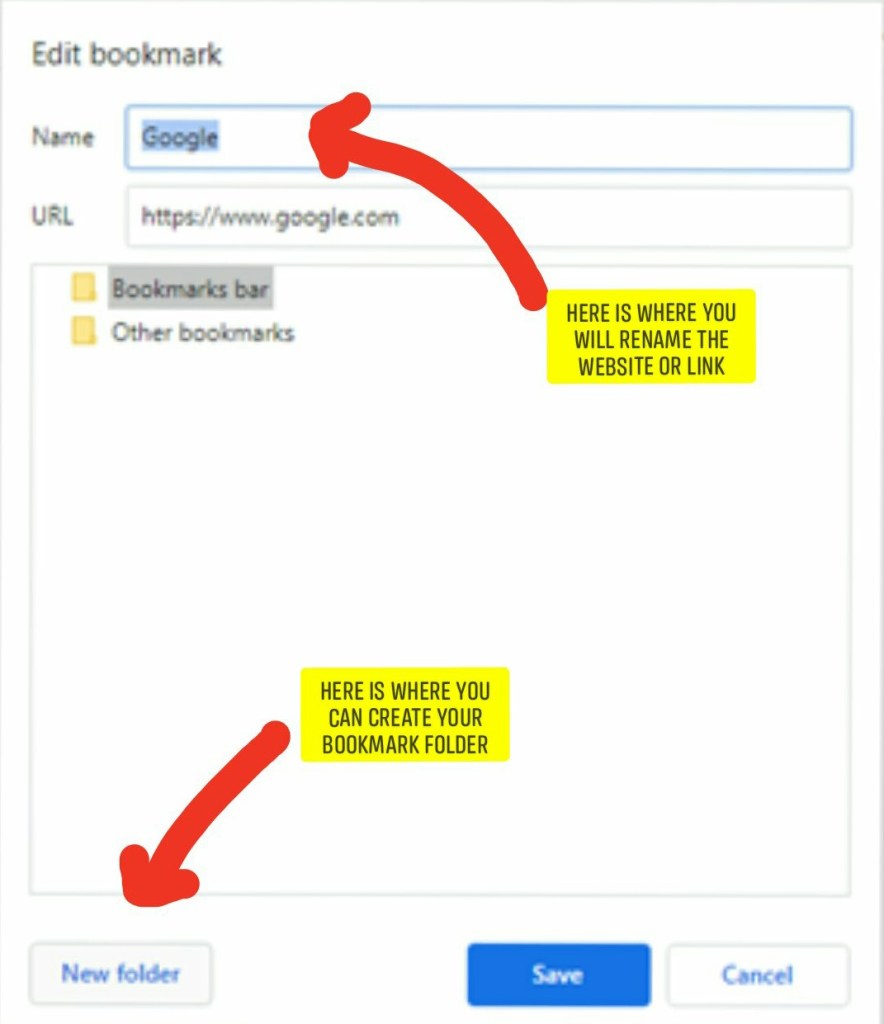
- If you clicked “New folder”, you can also change the bookmark folder name.
Add other websites or link?
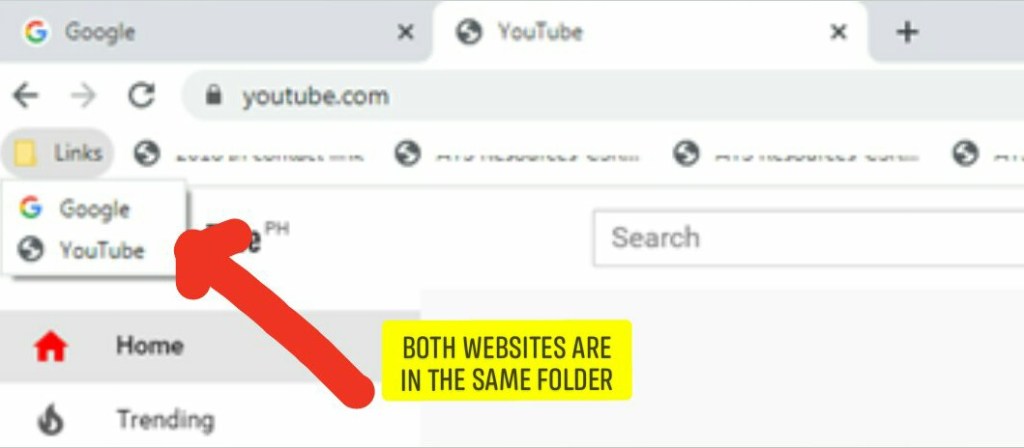
Simply open another tab and type the website. If you already have the link, just copy and paste. Follow the same process you did when you bookmark the first website.
You can either create another bookmark folder or save it to the same folder, like this one.
Can’t find the folder you created?
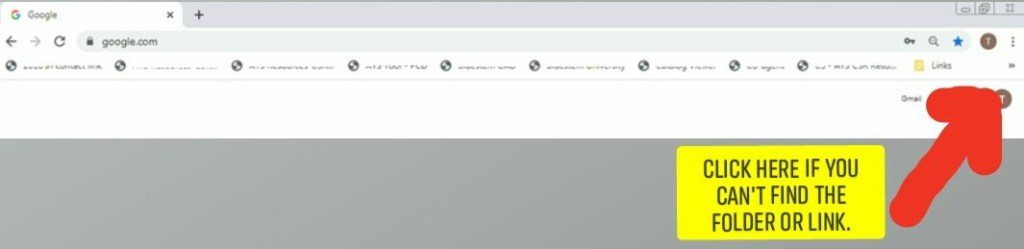
Are there too many websites or links showing on the bookmark bar? Simply clicked the >> sign. If it’s at the bottom of the list, just drag the folder or link up. If it’s showing on the bookmarks bar already, drag it sideways if you want that to be the first on the list.
 Collection of Ideas